 QRhop
QRhopExtract menu names and prices from a photo or PDF for café QR ordering
QRhop reads item names and prices from menu photos and PDFs, then lets the owner edit and confirm items before adding them to a café menu draft. You can try extraction, customer ordering, and the owner order board without an account; registering and running a real café requires Google sign-in and Premium at US$7 per month.
Try photo and PDF menu extraction Try customer ordering and the owner board Set up cafe
Premium US$7/month · Pay at the counter
Place an order. Watch it arrive.
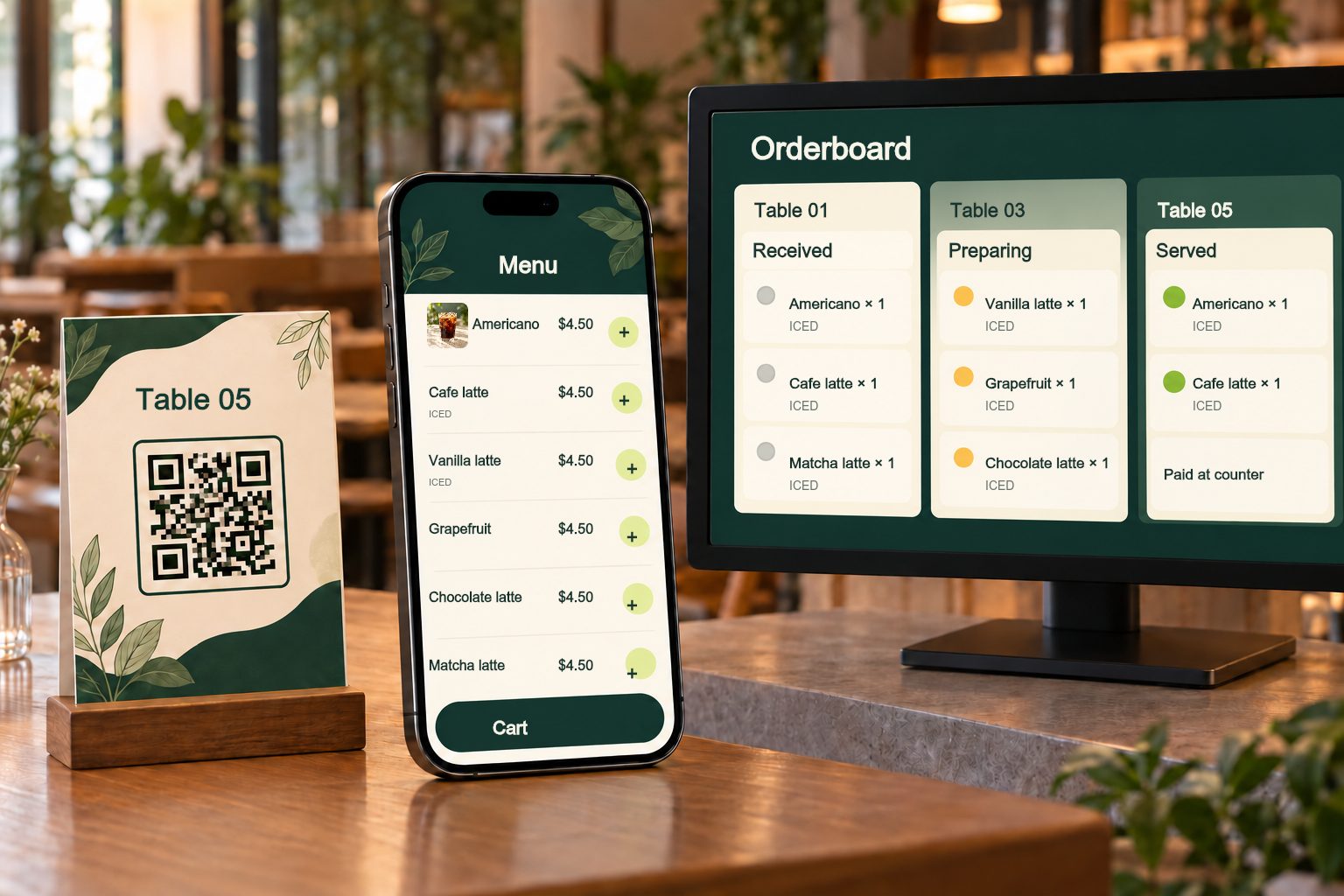
Choose from the sample menu, then prepare and serve your order on the board beside it. These fictitious orders stay on this page and disappear when you reload.
Customer ordering
Choose a table and a few items, then send your order.
The customer’s latest demo order
Owner’s orderboard
Move incoming orders from received to preparing and served.
Fictitious demo orders only. No real orders or payments are made.
Bring this flow to your cafe
Running a real cafe requires Google sign-in and Premium. Add your menu and tables to create your own ordering QR codes.
Menu QR, table orders and payment confirmation
| Method | What it does | Payment confirmation |
|---|---|---|
| Menu-link QR | Opens the encoded menu address. Viewing the menu does not submit an order. | Does not confirm payment. |
| QRhop table order | Customers submit quantities and choices; the orderboard shows their table and order. | Submitting an order is not payment. |
| Counter or Thai PromptPay | Take payment at the counter or use a transfer QR at a supported Thai cafe. | Staff verify receipt of funds. No automatic approval or POS integration. |
Set up table ordering
- Sign in with Google and use Premium to set the cafe name and currency. Enter final menu prices in that currency; no online payment service is connected.
- Add drinks, food and prices. Offer up to six choices per item, such as hot or iced, with optional extra prices. Mark sold-out items unavailable.
- Create named tables and download their PNG QR codes or print table cards. Test one printed code on a phone and check the table and prices.
- Enable new orders. Customers build a cart and submit without signing in. A private confirmation link lets them check preparation and service.
- Filter the orderboard by table, period or status. Move orders from received to preparing and served. Confirm counter payment only after receiving it.
One coffee, two different tables
The same coffee ordered at tables 1 and 5 appears under the correct table name. Changing the menu later preserves the name, choice and price recorded when each order was placed. Retrying an interrupted request does not create a duplicate order.
Update the menu without reprinting
Each table QR uses a stable QRhop ordering address. Edit prices, descriptions and availability without replacing the printed code. Pause all orders or one table. You can upload menu photos for customers. Automatic tax calculation, online payments, POS and kitchen printers are not currently supported.
A shared orderboard with scoped staff access
Grant staff access using their Google email. They can view orders, change order status and confirm counter payment for this cafe. Menu settings and other cafes stay outside their access. Revoke access immediately. The open orderboard refreshes every 15 seconds.
An order amount is separate from payment
Opening a QR does not create an order, and submitting an order is not payment. The order amount is the selected menu total; counter payment is a staff-entered confirmation. QR visits are not converted into customer counts or sales.
Customers see their own order
No name, phone number or Google account is required. The secret confirmation link opens only its order, never other orders at the table. Requests should contain no personal information. Order history is available for up to 90 days.
Thailand · PromptPay QR
Choose payment methods by cafe country and currency, not page language. QR registration currently supports Thailand and THB. Select a reusable bank-issued PromptPay transfer QR without an amount. PNG, JPG or WebP, up to 5MB. We read the QR data; the original photo is not stored. One-time, fixed-amount and bill-payment QR codes are not supported. Send the order to view the payment QR. Sending an order does not complete payment. Registering a QR does not automatically verify payment. Transfer the order amount and tell staff. Payment status changes after staff checks the actual incoming transfer. On the same phone, save the QR and import it from photos if your banking app supports this. Otherwise scan with another device or ask staff.
Staff calls · Enable sound
Keep this orderboard open and visible. Checks run every 15 seconds. Sound starts after you enable it; closed or sleeping screens receive no alerts.
Order stamps
Connect an existing loyalty program. One stamp is recorded for each paid order with a positive total, after staff confirm payment. Undoing payment removes its stamp. I agree to link my card with this order and store its stamp record. My card can be deleted from its page.
Edit menu with CSV · Schedule this menu
Export the full menu, edit it and import a draft. Keep existing IDs to preserve photos and options; leave ID blank for a new item. Missing rows are removed when you apply. Prices use the cafe currency; available must be true or false. Options: one name | extra price per line. Maximum 100 items. Time uses this device’s time zone. From the scheduled time, the next menu or order request publishes the saved draft before showing prices. Existing orders keep their prices. One pending menu per cafe.
Included capacity
Included in QRhop Premium at US$7/month: one cafe per account, 100 menu items, six choices per item, 50 tables, 10 staff and 10,000 orders per month. Each table can submit 30 orders per 10 minutes. New orders require active Premium. Existing orders remain viewable and processable after the subscription ends.
Cafe QR ordering FAQ
How does it differ from a QR menu?
Customers select quantities and choices and send an order. The shared orderboard shows the table and lets staff process it.
Do customers need an app or account?
No. Customers use a phone browser. Only cafe owners and staff sign in with Google.
Does it connect payments, POS or printers?
Choose payment methods by cafe country and currency, not page language. QR registration currently supports Thailand and THB. Send the order to view the payment QR. Sending an order does not complete payment. Registering a QR does not automatically verify payment. Transfer the order amount and tell staff. Payment status changes after staff checks the actual incoming transfer.
Can someone with a shared table link order remotely?
An active table link permits orders. Staff should check the table and request before preparing it, and can pause orders for that table.
When do order alerts arrive?
Keep this orderboard open and visible. Checks run every 15 seconds. Sound starts after you enable it; closed or sleeping screens receive no alerts.
When are order stamps recorded?
Connect an existing loyalty program. One stamp is recorded for each paid order with a positive total, after staff confirm payment. Undoing payment removes its stamp.
When does a scheduled menu take effect?
Time uses this device’s time zone. From the scheduled time, the next menu or order request publishes the saved draft before showing prices. Existing orders keep their prices. One pending menu per cafe.
Can QRhop extract item names and prices from a menu photo or PDF?
It supports JPEG, PNG, WebP, and PDF. It reads text directly from text PDFs and uses optical character recognition (OCR) for photos and scanned PDFs. Blurry images and complex layouts can cause omissions or errors, so compare the draft with the original before registering it.
Is my original menu file sent to a server?
The original file and recognized source text are processed in your browser. They are not sent to the server or included in analytics events. Public trial results stay in page memory. For a real café, the reviewed item names and prices are saved when you apply them to the menu.
Do extracted items appear on the customer menu immediately?
Extraction alone does not publish items. The owner must edit, select, and confirm them, add them to the current menu draft, then save through the existing menu apply process. Options and categories are configured manually.
Can I try customer ordering and the owner board without an account?
On this guide page, you can try menu extraction, place a sample order, choose a table, and move orders through received, preparing, and served. Demo orders are not sent to a real café and no payment occurs. Real operation requires Google sign-in and Premium.