QRhop
QRhopHow to Scan a QR Code on a MacBook or Windows PC
Paste or upload a screenshot or photo to QRhop to read its QR content on the same PC or Mac. Basic reading is free and needs neither a camera nor an account.
Scan a QR code on a MacBook: copy a screenshot
Press Control + Shift + Command + 4 and select the complete QR code to copy a screenshot to your clipboard. Return to QRhop and press Command + V. You can also select or drag in a saved image.
Scan a QR code on Windows: use the Snipping Tool
Press Windows + Shift + S to capture the QR code, then paste it into QRhop with Ctrl + V. You can also choose a downloaded PNG or JPG file.
Check a QR code URL before opening it
With automatic opening enabled, the decoded address appears for 3 seconds before this tab navigates to it. Cancel the countdown or turn off automatic opening to open links yourself. Review the destination for unfamiliar codes.
QR code not scanning? Check the image
Keep a white margin around the QR code and avoid cutting off its edges. Crop a small QR code out of a large screenshot. Blur, reflections and a steep angle may prevent scanning. Use one QR code per image.
Supported QR image formats and file size
PNG, JPG, WebP, GIF and BMP are supported, up to 20MB. For GIFs, the browser-loaded frame is read. Take a screenshot of the QR area in PDFs or HEIC images. QRhop works in your browser without a camera or an account.
How do I read a QR code in a PDF?
Open the PDF and capture the QR area instead of attaching the PDF itself. Include all four sides and the white border, then select the PNG or JPG on the scanner page. If the document blocks capture, ask its issuer for a direct link. QR Studio: PNG/JPG/PDF · 20 MB · 20 PDF pages · images rendered at up to 2,000 px. Up to 10 QR codes per page. Premium is required for PDF tools, cloud storage and publishing. A single image and the sample work without a subscription.
Why does a decoded QR link not open?
Decoding an image does not mean the destination is still available. A deleted page or expired destination link cannot be repaired by rescanning the same code. Wi-Fi and plain-text codes may contain no website address at all.
Same QR, different images: compare them yourself
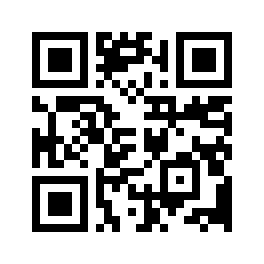
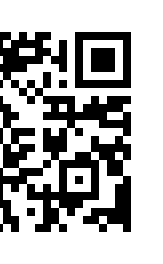
Download the original, a one-pixel-per-module reduction and a copy with the left corners removed. Results below come from decoding the raw pixels with jsQR 1.4.0, the decoder used by QRhop. Load each file into the free reader and compare the content and address.
Download sample

Download sample
Download sample
Download sample
| File | Image dimensions | Module size | Image decoding result |
|---|---|---|---|
| Original link QR | 264 × 264px | 8px | Matches the input |
| 33px reduced link QR | 33 × 33px | 1px | Matches the input |
| QR with left corners removed | 163 × 264px | — | No decoded result |
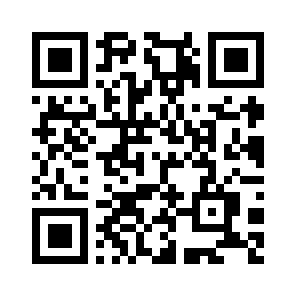
| Plain text QR | 296 × 296px | 8px | Matches the input |
Switch automatic opening off and load the original. Its content should be https://qrhop.makeup/. Reading the QR and visiting the site are separate actions.
Compare the reduced and cropped files. A decoded 33px image is not evidence that its print or every phone camera will work. Recover a cropped code by obtaining the original.
The text sample decodes to a sentence, not a web address. The absence of an Open website button does not mean decoding failed.
How to interpret this record
A small image may decode when its pixels are intact. A larger image can fail when its finder patterns are removed. These are four sample checks, not a success-rate study, recommended scan-distance measurement or device compatibility survey.
Verification record JSON · Download sample → QRhop