QRhop
QRhopQR code print quality checklist before you publish
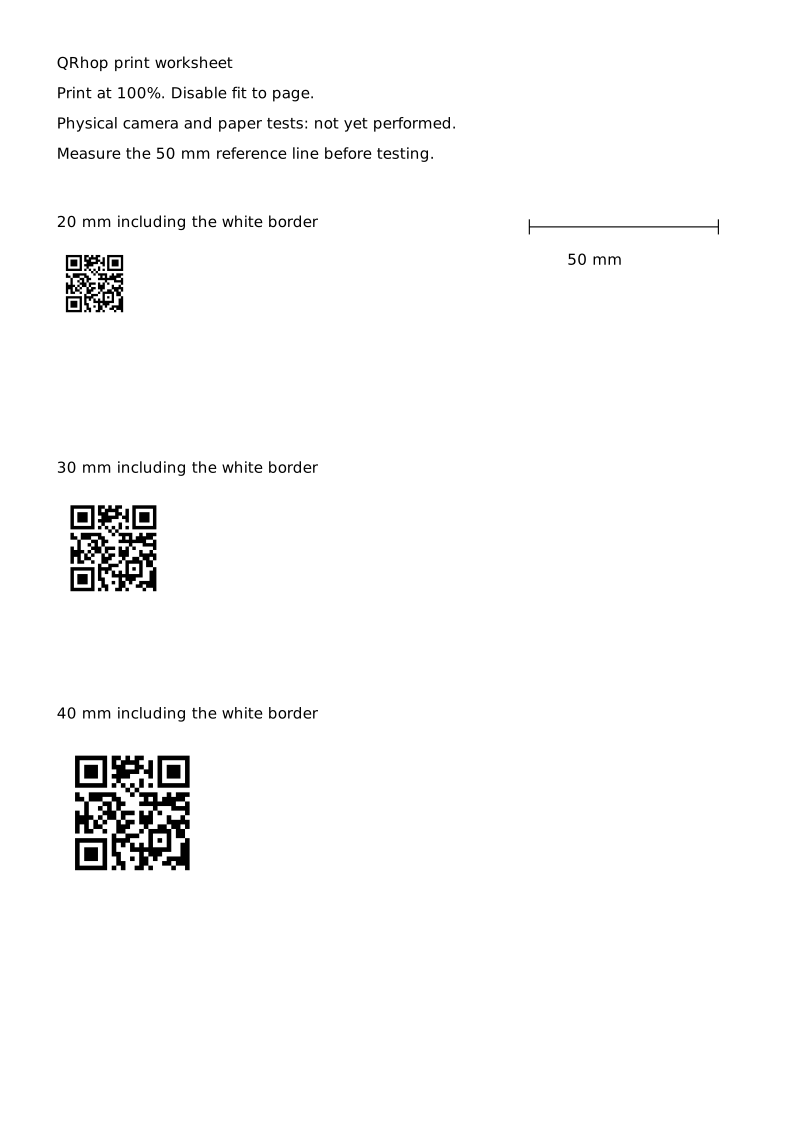
QR print size depends on the content, distance, paper and lighting. Print the 20, 30 and 40 mm worksheet at 100% scale and compare it with several phones in the intended setting.
Create a test QRFour checks before distribution
Finalize the destination or payload and generate the code. QRhop decodes the completed card and enables download only when the decoded result matches your input.
Place it at the exact size used in the artwork and preserve the light margin around the code. Check that crop and fit-to-page options do not distort the grid.
Print one copy with the final printer and material. Test at the expected distance and lighting with at least two different phones, then confirm the displayed domain.
Record the destination, file version, print size, devices and date. A static QR with a changed destination requires a new code and a new print.
Protect the quiet zone and contrast
The clear margin helps a reader separate the code from nearby text and borders. Use a dark code on a light, plain background. Decorative elements must not obscure the three large position markers.
Test distance, not size alone
A counter card and a wall poster are read from different distances. Make the code larger as distance grows, and allow extra margin when a long URL creates a dense grid. SVG is useful for artwork that will be scaled; PNG must have enough pixels for its final placed size.
Test gloss, curves and folds
Glossy coating can reflect lights, while a bottle can bend the grid. Keep folds, holes, staples and label edges outside the QR area. A sample on the actual material is a better test than an on-screen preview.
What QRhop validation proves
The internal decode check verifies that the generated card contains the requested payload. It cannot certify a particular printer, paper, camera, network or destination website. That is why both pre-download validation and post-print device testing matter.
Keep a small test record
Write down the campaign, destination, file version, physical size, material, test devices, successful distance and review date. This makes a bad print run or stale link easier to reproduce and correct.
Print testing questions
Can I place a logo in the center?
The Premium generator places it inside a bounded white area, uses high error correction and decodes the finished result again. Do not cover more modules after export, and test the actual print on multiple phones. The branded print tool keeps its logo separate from the QR.
Is one successful phone test enough?
No. Camera hardware and decoding software vary, so test multiple devices in the real environment.
Does a working link mean it is safe?
Readability and trust are separate. Review the displayed domain and final destination.
Keep your own print-test record
The 20, 30 and 40mm samples measure the whole image including the white margin. Print at 100%, disable fit to page and measure the 50mm reference line with a ruler. Physical tests have not been performed; these widths are not guaranteed scan sizes.
| Whole width | Module width | Dots per module at 300dpi | Physical test |
|---|---|---|---|
| 20mm | 0.61mm | 7.2 | Not performed · record your test |
| 30mm | 0.91mm | 10.7 | Not performed · record your test |
| 40mm | 1.21mm | 14.3 | Not performed · record your test |
Print one copy using the actual printer, paper and finish. Keep this separate from reading the image on a screen.
Read the 20, 30 and 40mm samples with two different devices at the same lighting and distance. Record distance, device, browser, decoded content and destination.
If it fails, change one factor: size, glare, margin or print scaling. A successful setup does not establish compatibility for every subsequent print.
A4 test sheet SVGBlank print-test CSVQR SVG