QRhop
QRhopHow to create branded QR print materials with a logo
A logo can help customers recognise who owns a QR experience. The Premium generator can place a logo in a bounded white centre area and decode-check the finished QR; branded poster layouts can instead keep the image separate above the code.
Create branded print materialsFrom brand image to tested print
Publish a QR Studio page and create a campaign address for the placement you want to measure. Confirm the destination before designing the print.
In the customer workspace, choose the campaign and upload a PNG, JPG or WebP brand image. QRhop fits wide and tall images into a fixed area without stretching them.
Choose an A4 poster, A6 counter card or 80 × 80 mm sticker. Keep the instruction short and state what the visitor receives after scanning.
Export the PNG or PDF, print at 100% scale and test the physical sample under the lighting and distance where it will be used.
Keep the logo away from QR modules
Use the Premium generator for a bounded centre logo: it switches to high error correction and unlocks download only after the finished QR decodes correctly. Branded print layouts can place the image above the code instead. In both cases, preserve the clear border and test the final print.
Choose the right source image
A simple mark with strong contrast survives small formats better than detailed artwork. Transparent PNG files work well when the logo has deliberate clear space. Very wide or tall images are contained rather than cropped, so preview the amount of empty space before export.
Match the format to viewing distance
An A6 card is suited to a counter where a phone is close. An A4 poster may be read from farther away and needs a larger final code. Stickers face glare, curved surfaces and wear. The exported resolution is only a starting point; the finished object is the real test.
Use separate campaigns for separate placements
A poster and a table card can show the same offer while using different campaign addresses. Their reports can then compare visits and goal clicks by placement. Event counts are not unique people, and a click does not confirm a purchase.
What requires Premium
Basic static QR generation and PNG or SVG download are free. Saved brand images, customer programmes, managed campaigns and branded print exports are Premium tools. The checkout page shows the current subscription and tax details.
Logo and QR printing questions
Can I place my logo inside the QR code?
Yes, in the Premium generator. Choose one of the fixed logo sizes and use the verified export without covering more modules afterward. The branded print workflow also offers a separate-logo layout.
Which file type should I upload?
Use PNG, JPG or WebP up to the stated upload limit. A clean, high-resolution source with little fine text is easier to reproduce.
Why test more than one phone?
Camera hardware and decoding software vary. A physical sample under real light is more reliable than an on-screen preview.
Keep your own print-test record
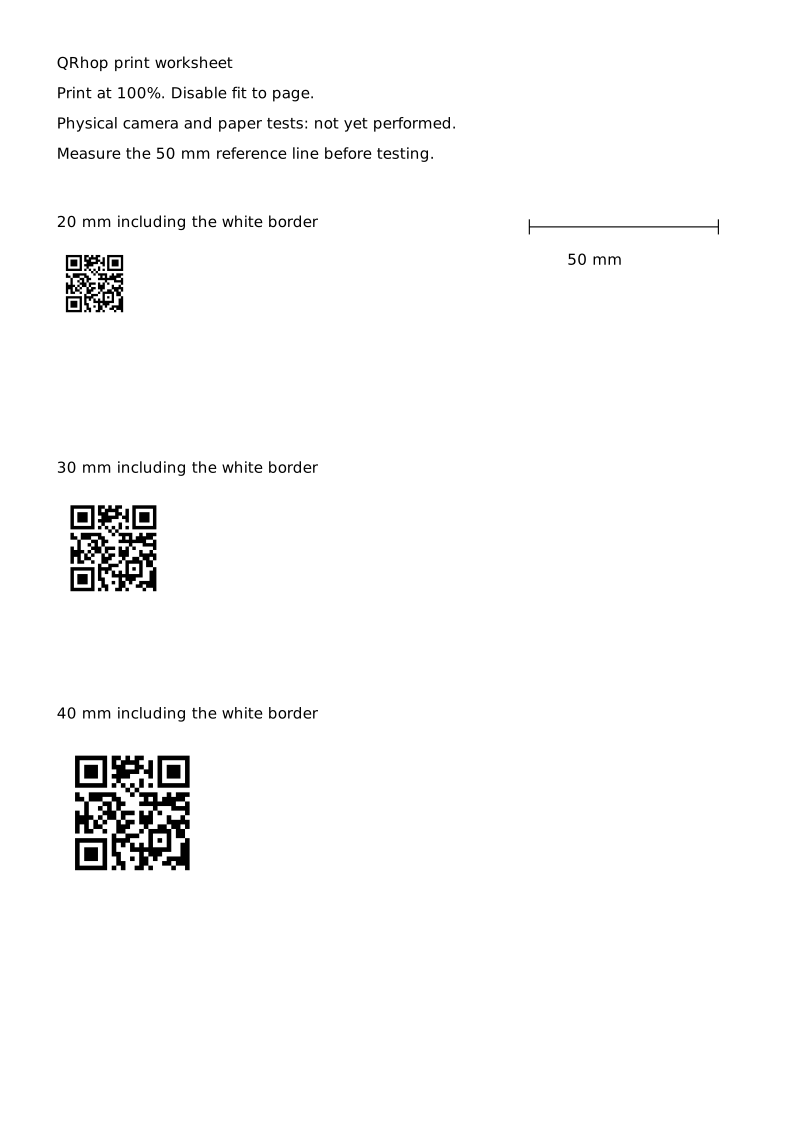
The 20, 30 and 40mm samples measure the whole image including the white margin. Print at 100%, disable fit to page and measure the 50mm reference line with a ruler. Physical tests have not been performed; these widths are not guaranteed scan sizes.
| Whole width | Module width | Dots per module at 300dpi | Physical test |
|---|---|---|---|
| 20mm | 0.61mm | 7.2 | Not performed · record your test |
| 30mm | 0.91mm | 10.7 | Not performed · record your test |
| 40mm | 1.21mm | 14.3 | Not performed · record your test |
Print one copy using the actual printer, paper and finish. Keep this separate from reading the image on a screen.
Read the 20, 30 and 40mm samples with two different devices at the same lighting and distance. Record distance, device, browser, decoded content and destination.
If it fails, change one factor: size, glare, margin or print scaling. A successful setup does not establish compatibility for every subsequent print.
A4 test sheet SVGBlank print-test CSVQR SVG